+1 805-283-6908
 +91 73473-34050
In order to understand Instructor Payroll in Merithub Session Accounting, follow the below-mentioned details:
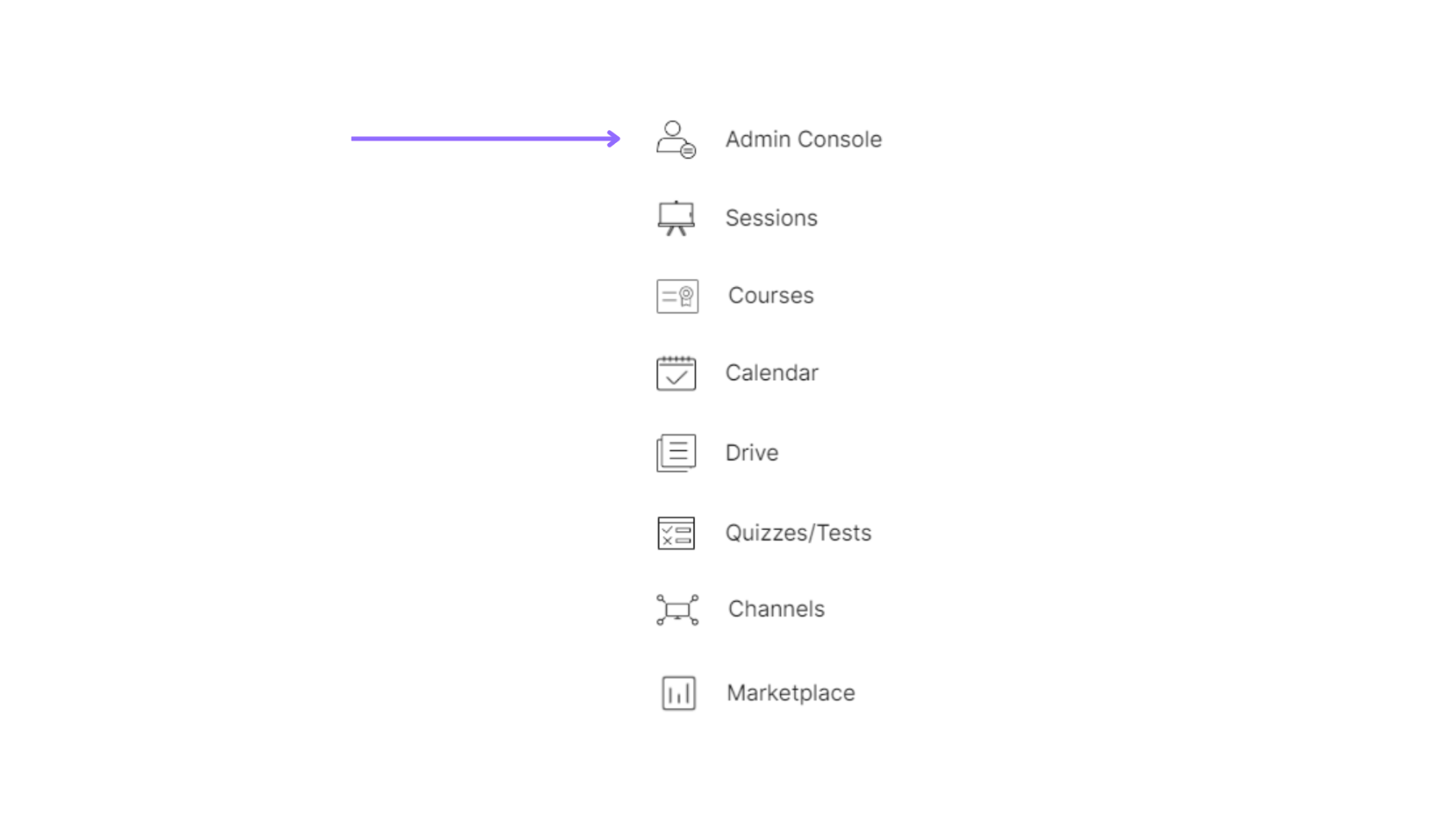
Select the Admin Console of a particular organization.
Select the “Accounting & Payments” option under the “Instructor Payroll” section.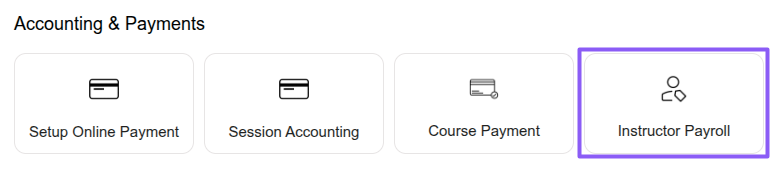
In Merithub, instructor rates can be configured while creating or managing a session. Once the session is completed, the instructor payment is automatically reflected in the Instructor Payroll section. This helps organizations track instructor earnings, payable amounts, and payroll records efficiently.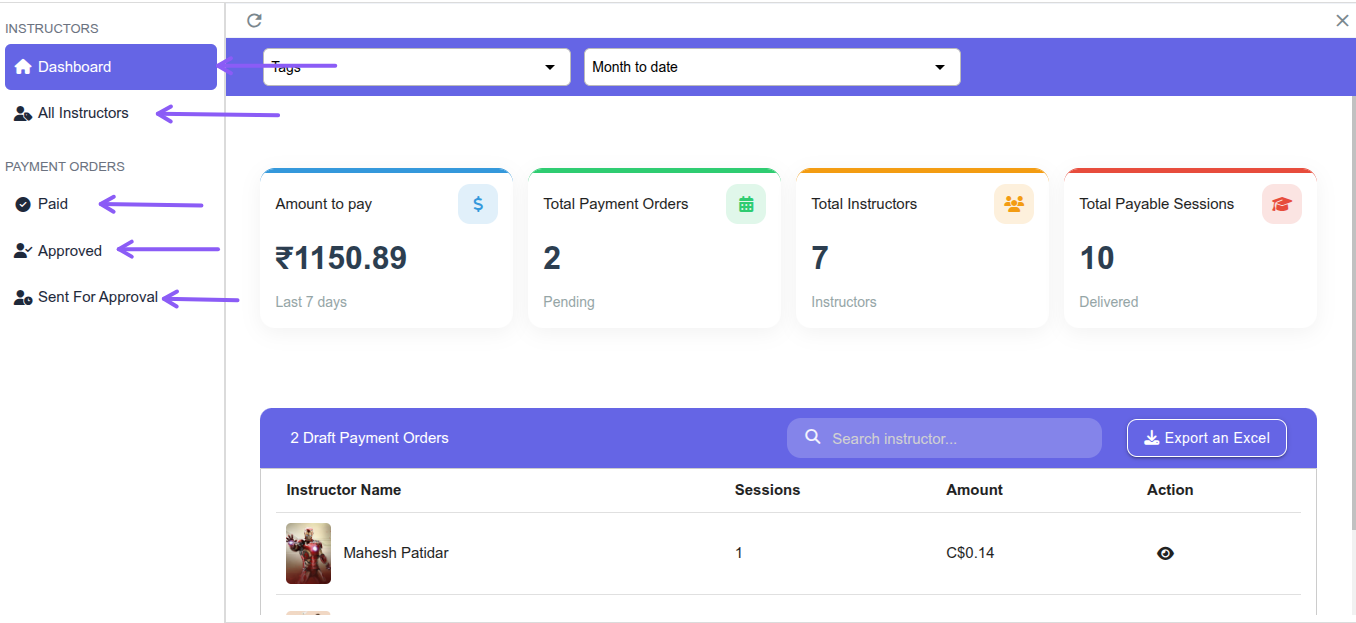
Under the Instructors section, the payroll Dashboard displays important details such as Amount to Pay, Total Payment Orders, Total Instructors, and Total Payable Sessions to help manage instructor payroll records efficiently.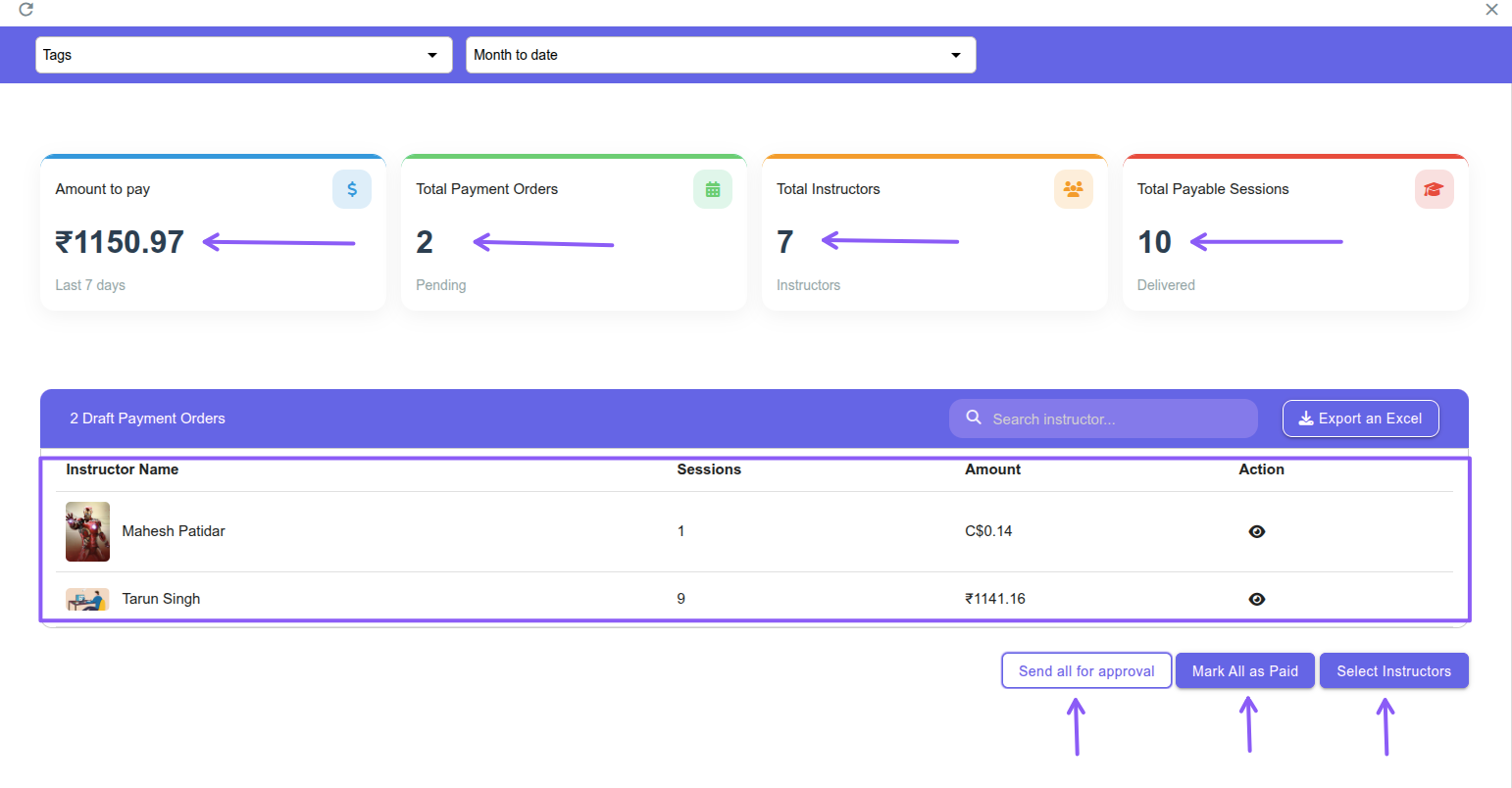
Use the payroll action buttons to manage instructor payments efficiently in Merithub. The Mark All as Paid option helps mark all pending instructor payments as paid, while Send all for approval sends pending payroll entries for approval. You can also use Select Instructors to process payroll actions for specific instructors only.

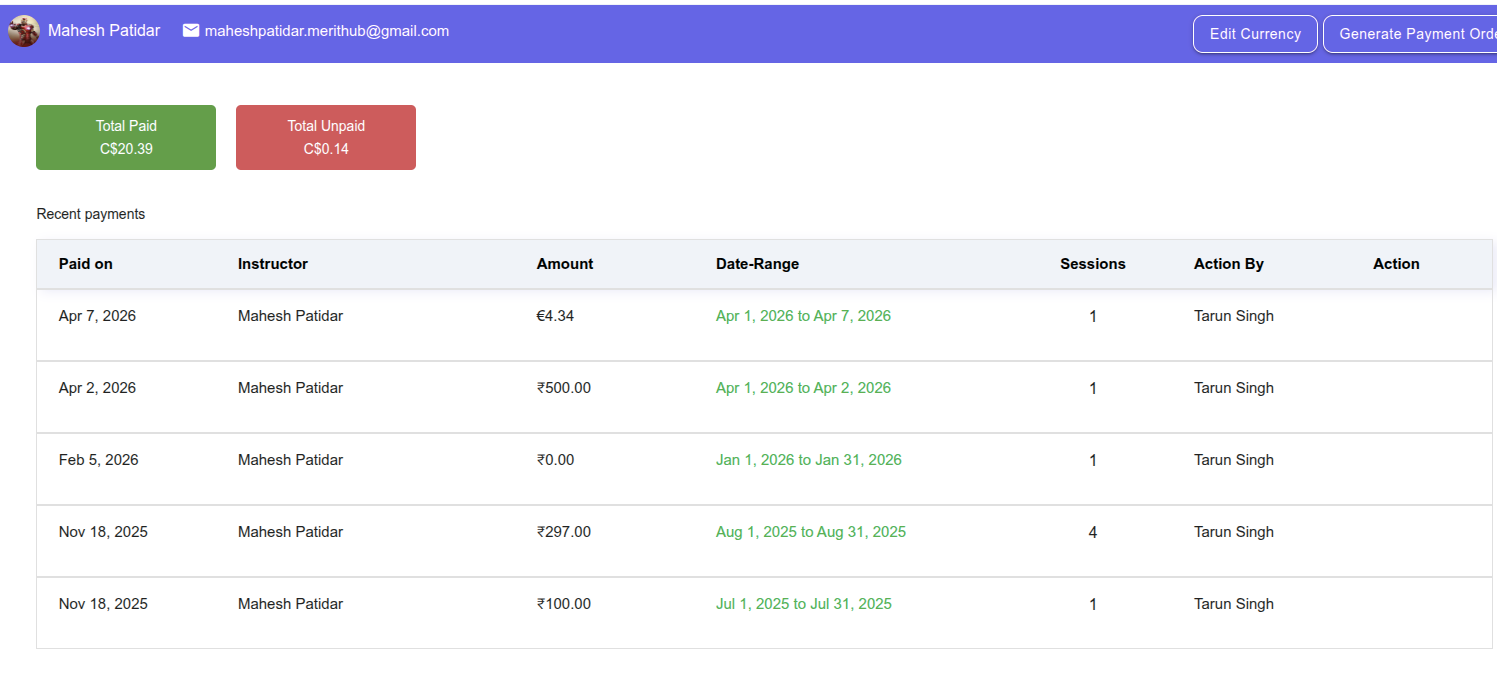
Under the Instructors section, click All Instructors to view payroll details such as paid amount, pending amount, and recent payment orders. Use the View option under Actions to see detailed session-wise payroll reports for a particular instructor.
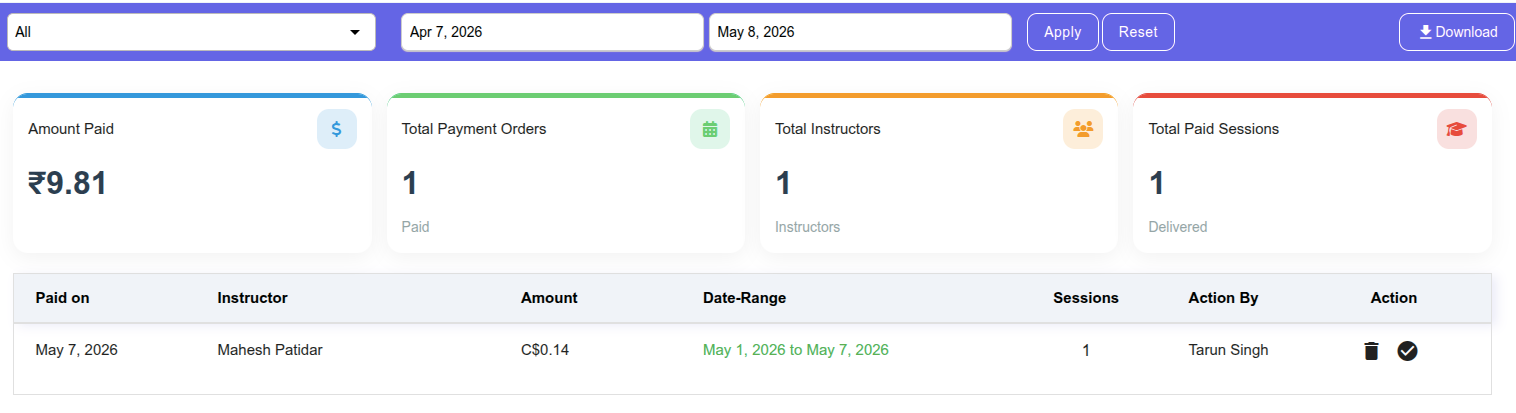
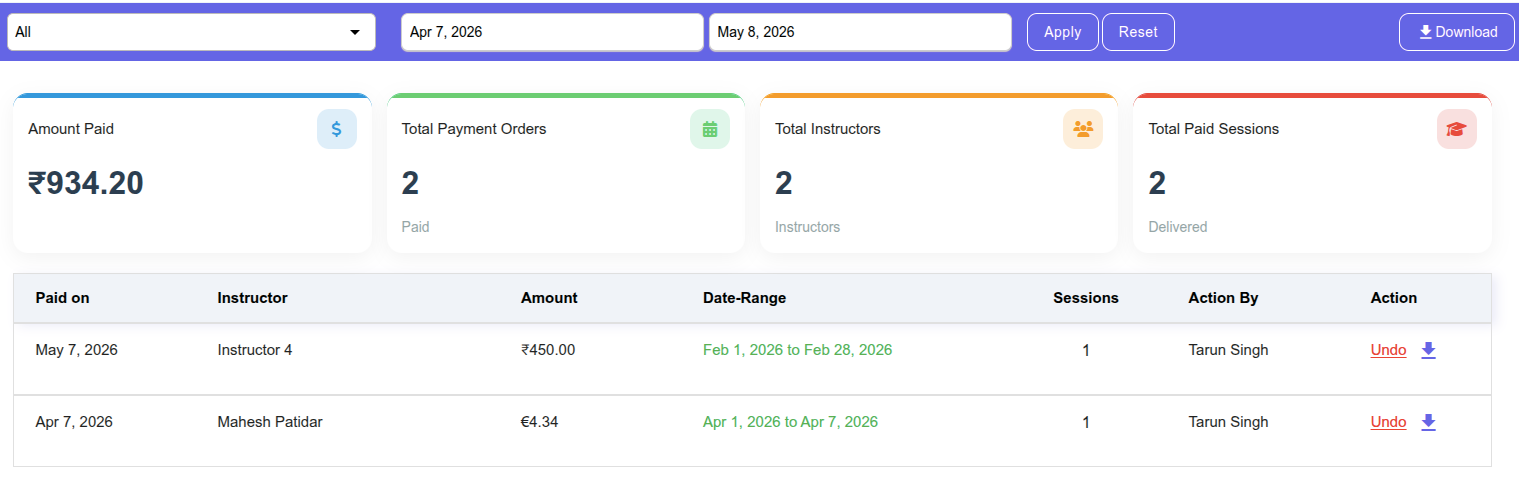
Under the Payment Orders section, click the Paid option to view details such as Amount Paid, Total Payment Orders, Total Instructors, and Total Paid Sessions. You can also apply filters based on date range and instructors, download the payroll report in Excel format, and use the Undo option under Actions to revert a particular instructor’s payment entry.
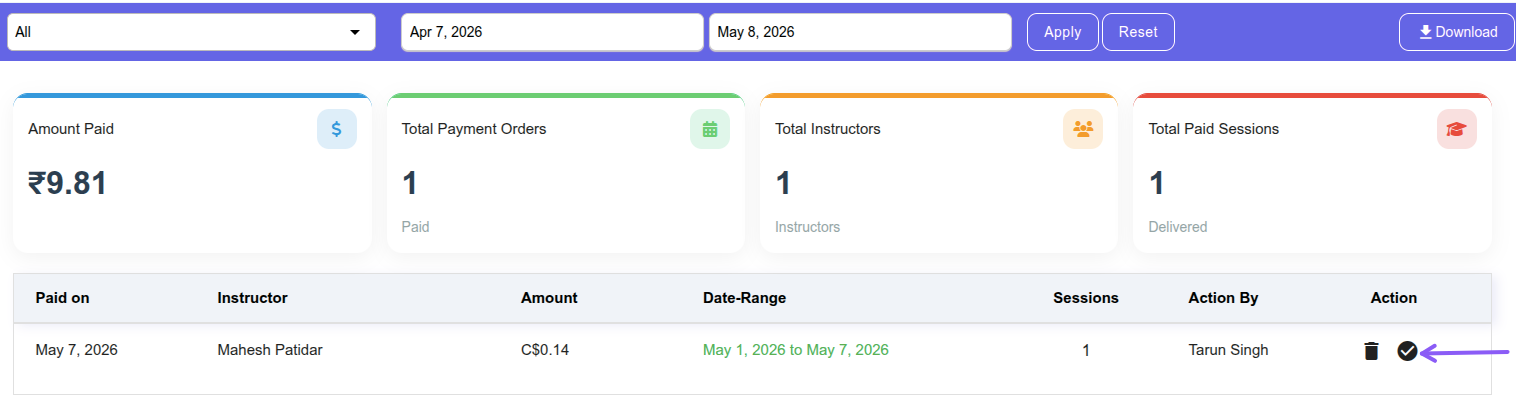
Under the Payment Orders section, click the Approved option to view instructor payroll entries that have been approved for payment. From this section, you can review the approved payment records and mark the instructor payments as paid.
Under the Payment Orders section, click the Sent For Approval option to view instructor payroll entries that have been sent for approval but are not yet approved by the instructors. You can also use the Undo option under Actions to revert the approval request for a particular instructor payment entry.